Welcome back. You were on step .
-
Step 1: Download the Waggi app
Get the free Waggi app on the phone you’ll use most with your dog.
Photo needed: The Waggi app’s November listing in the App Store (iPhone): the app icon, name and Get button, with the new app’s preview screenshots -
Step 2: Create your account
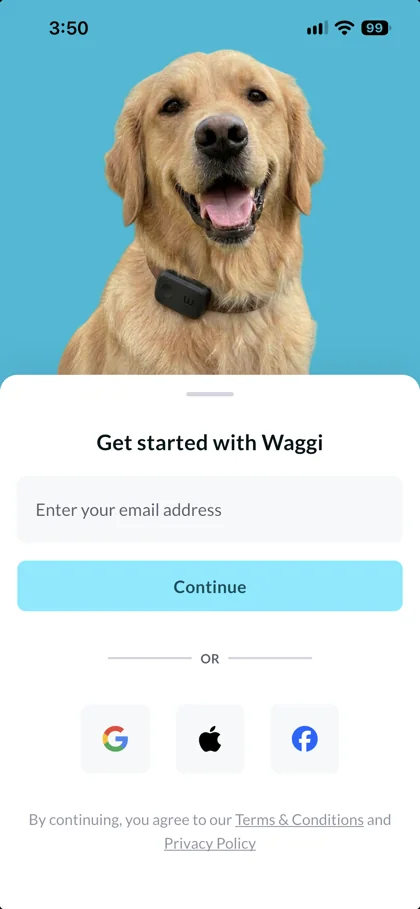
On Get started with Waggi, enter your email and tap Continue, or use Google, Apple (on iPhone) or Facebook. With a new email, add your first and last name (your phone number is optional) and tap Next. Then type the four-digit code we email you and tap Verify.
TipAlready have an account? Enter the same email and you’ll get a code to sign in. On a new phone, the app asks for permissions again, then opens Home with your dog and tracker.
The code didn’t work?
Codes last 10 minutes. If it says “Incorrect code entered. Please try again”, check your email for the latest code, or wait for the timer and tap Resend OTP.
-
Step 3: Allow location and Bluetooth
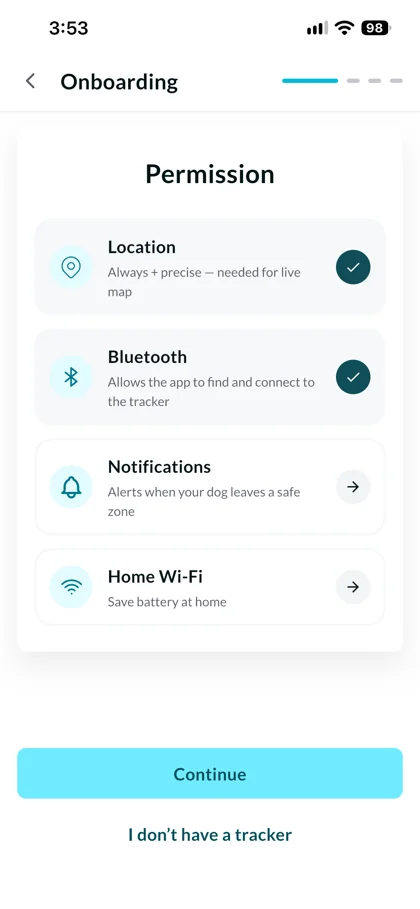
On the Permission screen, tap Location and choose Always, with precise location on, then tap Bluetooth and allow it. Each shows a tick once it’s allowed. Notifications and Home Wi-Fi are optional, so you can set them up later. Then tap Continue.
TipTracker not here yet? Tap I don’t have a tracker to go straight to your dog’s profile. When it arrives, tap Pair Device on the Pair your tracker card on the Home screen.
Continue is greyed out?
Location and Bluetooth both need a tick. If your phone doesn’t ask, open its Settings, find Waggi, set Location to Always with precise location on, and turn on Bluetooth. Then go back to the app.
-
Step 4: Keep the tracker close to your phone
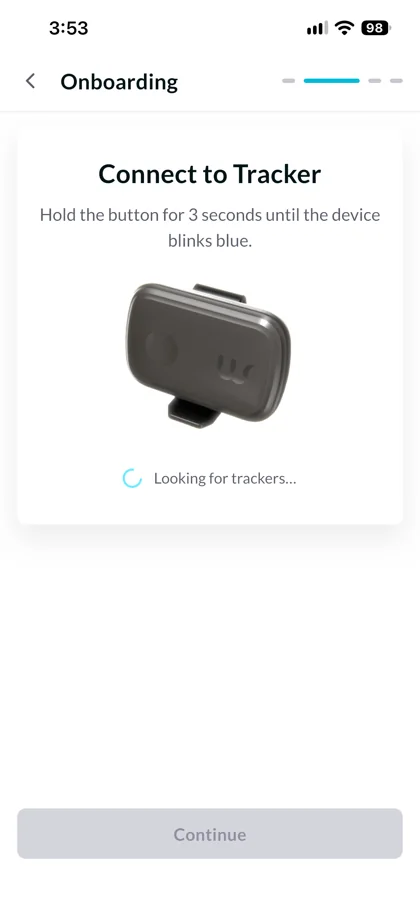
The app starts Looking for trackers… straight away. Keep the tracker within a metre of your phone. It can be found whenever it’s switched on, even on its charging pad, so there’s nothing to press. If it’s off, put it on its charging pad.
TipThe app asks you to hold the button until the light blinks blue. You don’t need to. Holding it for 3 seconds turns the tracker off.
The app says No devices found?
If you held the button, the tracker may have turned off. Put it on its charging pad to turn it back on, then tap Retry. Otherwise, check the tracker is charged and within a metre of your phone, then tap Retry. If it still isn’t found, put it on its charging pad. If no light comes on, it needs charging first.
-
Step 5: Tap Continue when your tracker is found
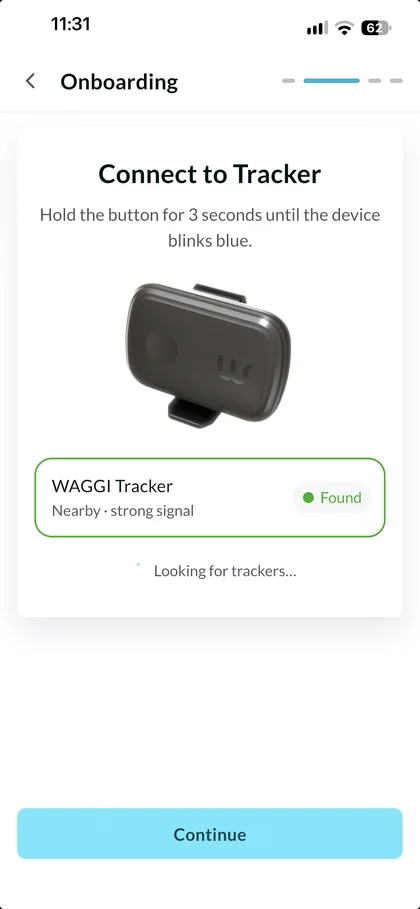
Your tracker appears as WAGGI Tracker, marked Found. If there’s more than one, tap yours. Tap Continue and wait while it says Pairing. When you see Connection successful, tap Done to set up your dog’s profile.
TipThe four characters after WAGGI Tracker, once they appear, are the end of your tracker’s ID. The Connection successful message shows it too.
It says Connection Failed?
Keep the tracker close and tap Retry. If the message says it may be connected to another phone, turn off Bluetooth on that phone, or close Waggi there completely, and try again. If it says the tracker is registered with another account and you set it up before with another email, sign in with that account instead, or contact support. For any other message, follow its advice. If it asks you to restart the tracker, follow “Reset the tracker”.
Frequently asked questions
Before you start
Which phones work with Waggi?
Waggi works on iPhones running iOS 16 or later, and on Android phones running Android 10 or later. If you’re not sure which version you have, you’ll find it in your phone’s settings, under General › About on an iPhone or About phone on Android.
Do I need Wi-Fi to pair?
You don’t need Wi-Fi. Pairing uses Bluetooth to talk to the tracker and your phone’s mobile data to set up your account, so you can pair anywhere you have signal. If you’re on Wi-Fi, that works just as well.
Can I set up the app before my tracker arrives?
Yes. On the Permission screen, allow Location and Bluetooth, then tap I don’t have a tracker and carry on with your dog’s profile. When your tracker arrives, tap Pair Device on the Pair your tracker card on the Home screen.
Permissions
Which permissions does Waggi need?
Location, set to Always with precise location on, and Bluetooth. You need both before you can tap Continue on the Permission screen. Notifications and Home Wi-Fi are optional: set them up there, or later from Settings.
Why set location to Always?
With location set to Always, the app can show you and your dog on the same map, keep recording a walk while your phone is locked, and give you directions to your dog in Live mode. You can change this any time in your phone’s settings, under Waggi.
Should I add my home Wi-Fi?
It’s optional. Tap Home Wi-Fi on the Permission screen, or later go to Settings, then Tracker Settings, then Home Wi-Fi. Enter the Wi-Fi name and password, move the map so the pin sits on your home, then tap Save. The tracker works with 2.4 GHz Wi-Fi only. For now, adding it gets the tracker ready for a future update. To save battery at home, put a virtual fence round your home: the tracker can rest its mobile connection while your dog is inside it. More in Home Wi-Fi, under Knowing your tracker.
Finding your tracker
Do I need to press the button to pair?
No. The tracker can be found whenever it’s switched on, even while it’s on its charging pad, so just keep it within about a metre of your phone. The button is on top of the tracker, the round dip at the opposite end from the Waggi logo. Holding it for three seconds (off the charging pad) turns the tracker off. The app asks you to hold the button until the light blinks blue, but you don’t need to.
The app can’t find my tracker. What now?
Check Bluetooth is on, the tracker is on its charging pad with its light showing, and it’s within a metre of your phone, then tap Retry. If you held the button, the tracker may have turned off: the pad turns it back on. Still not found? Follow “The app can’t find my tracker”, under Troubleshooting.
After pairing
What if I get a new phone?
There’s no need to pair again. Install the Waggi app on your new phone and sign in with the same email as before, whether you type it or use Google, Apple or Facebook. Your dog, tracker and walks come back, and the app connects to the tracker by itself once it’s close by. The app asks for location and Bluetooth again, then opens Home. Then sign out on your old phone so it stops getting alerts. The guide “Pair again after changing phones”, under Troubleshooting, shows each step.