At a glance
Every so often there’s an update for the tracker’s software, called firmware. You install it from the Waggi app, with the tracker next to your phone. It takes a few minutes.
The app itself updates through the App Store or Google Play. When Waggi needs a newer version of either, the app tells you.
How updates work
The tracker doesn’t update by itself. Your phone downloads the update over the internet, then sends it to the tracker over Bluetooth, so the tracker needs to be close by and connected.
- Tracker updates
- Installed from Settings, then Tracker Settings, under Firmware. They bring fixes and improvements to how the tracker works.
- App updates
- Installed from the App Store on iPhone or Google Play on Android, like any other app.
- Being told
- With Firmware updates switched on in Settings, then Notifications, you get a notification and an email when there’s a new tracker update.
Update the tracker
You can update whenever the app offers one. It’s easiest at home, with the tracker next to your phone.
- Open Tracker Settings
- Go to Settings, then Tracker Settings. Under Connection, it should say Connected; if not, tap Connect. Under Firmware, you’ll see Up to date, or an Update firmware button when there’s an update. Tap Update firmware.
- Get the tracker ready
- Keep it next to your phone, with more than 30% battery. Turn off Live mode and stop any walk.
- Tap Download
- Your phone downloads the update. What’s New shows what it changes.
- Tap Install
- Your phone sends the update to the tracker. Keep the screen open and your phone unlocked. The screen says roughly how many minutes it takes.
- Wait for it to restart
- The tracker restarts, with a countdown of under a minute. When you see Update complete, tap Done.
The Update Required message
If your tracker’s firmware is too old for the app, “Update Required” appears when the app connects to it. That can be while you pair the tracker, when you open the app, or in Tracker Settings.
It says the tracker’s firmware is out of date and no longer supported, and shows its current version and the version it needs.
- Update firmware
- Opens the update. Follow the steps above, from Tap Download. When it’s done, Done takes you to the Home screen.
- Close
- Closes the message so you can update later. It comes back the next time the app connects to the tracker, until you update.
- While pairing
- Pairing can’t finish until the tracker is updated. Keep it next to your phone, tap Update firmware, then pair again if the app asks.
Updating the app
Update Waggi from the App Store or Google Play. To get updates as soon as they’re out, turn on automatic updates in your phone’s app store.
When Waggi needs a newer version of the app, a message says “Update required” as the app opens. Tap Update now to go to the App Store or Google Play. You can use the app again once it’s updated.
Different situations
- “Could not download the update.”
- Your phone couldn’t download it. Check your phone is online, on Wi-Fi or mobile data, then tap Retry, then Download.
- “Could not install the update.”
- The tracker lost touch with your phone. Put it right next to your phone, keep the screen open and tap Retry. It carries on without downloading again.
- “Connect your tracker over Bluetooth before installing the update.”
- Go back to Tracker Settings, tap Connect under Connection, then start the update again.
- “No firmware update is available right now.”
- The app couldn’t check for one. Check your phone is online and try again later.
- There’s no Update firmware button
- If Firmware says Up to date, there’s nothing to install. If you see neither, connect the tracker with your phone online, then look again.
- Update Required keeps appearing
- It shows each time the app connects until the tracker is updated. Tap Update firmware and let the update finish.
- The light during an update
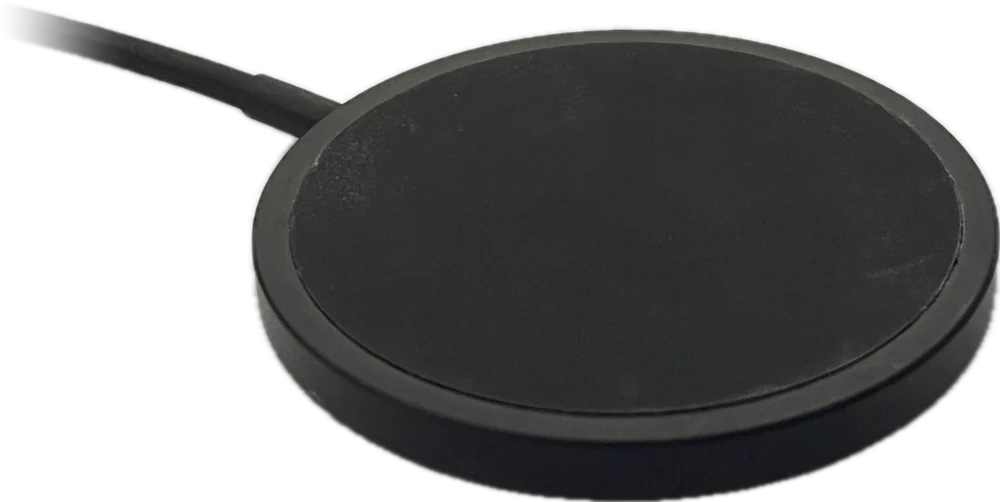
- There’s no special light while it installs. When it restarts, off the pad the light shows green for 3 seconds; on the pad you’ll see the charging colour.
Try it out
Frequently asked questions
Tracker updates
How do I update my tracker?
Go to Settings, then Tracker Settings. Under Firmware, tap Update firmware, then Download, then Install. Keep the tracker next to your phone, connected, with more than 30% battery, until you see Update complete. If it says Up to date, there’s nothing to install. If you see neither, connect the tracker with your phone online, then look again.
Does the tracker update by itself?
No. Updates go from your phone to the tracker over Bluetooth, so you install them from the app with the tracker close by. With Firmware updates switched on in Settings, then Notifications, Waggi tells you when there’s one.
How long does an update take?
A few minutes. The app shows roughly how long before you install, then the tracker restarts, which takes under a minute. Keep the screen open and your phone unlocked until it’s done.
How do I know which version my tracker has?
Go to Settings, then Tracker Settings, and look under Firmware. It shows the tracker’s current version, and Up to date when there’s nothing to install.
Will I get an alert when there’s a tracker update?
Yes, with Firmware updates switched on in Settings, then Notifications. You get a notification and an email. Install it from Settings, then Tracker Settings.
Update Required
What does Update Required mean?
Your tracker’s firmware is older than the app needs. Tap Update firmware and keep the tracker next to your phone until the update is done. It takes a few minutes.
Can I skip Update Required?
You can tap Close and update later. The message comes back each time the app connects to the tracker, and while you’re pairing, setup can’t finish until the tracker is updated.
App updates
How do I update the Waggi app?
Open the App Store on iPhone or Google Play on Android, search for Waggi and tap Update. Turning on automatic updates in your app store keeps it up to date.
Why does the app say Update required when it opens?
Waggi needs a newer version of the app. Tap Update now to go to the App Store or Google Play and update. You can use the app again once it’s updated.