Welcome back. You were on step .
-
Step 1: Turn on your phone’s location
Waggi can’t use your location while it’s switched off for the whole phone. On iPhone, go to Settings › Privacy & Security › Location Services and switch it on. On Android, turn on Location in your quick settings, or in Settings › Location.
TipIf the app says “GPS not enabled”, this is the setting it means. Tap Turn On to go straight there.
-
Step 2: Allow Waggi’s location Always, with Precise
On iPhone, open Settings, find Waggi (under Apps on newer iPhones), tap Location, choose Always and switch on Precise Location. On Android, go to Settings › Apps › Waggi › Permissions › Location, choose Allow all the time and switch on Use precise location.
TipWalk Now, Live and setup need Always, so your phone can draw your route and give directions to your dog with the screen off. Your dog’s location itself comes from the tracker, not your phone.
Photo needed: iPhone Settings › Waggi › Location, with Always selected and Precise Location switched onAlways isn’t offered?
Phones only offer While Using at first. Choose that (not Allow Once), and Waggi opens its settings so you can change it to Always, or Allow all the time on Android.
-
Step 3: Come back to Waggi
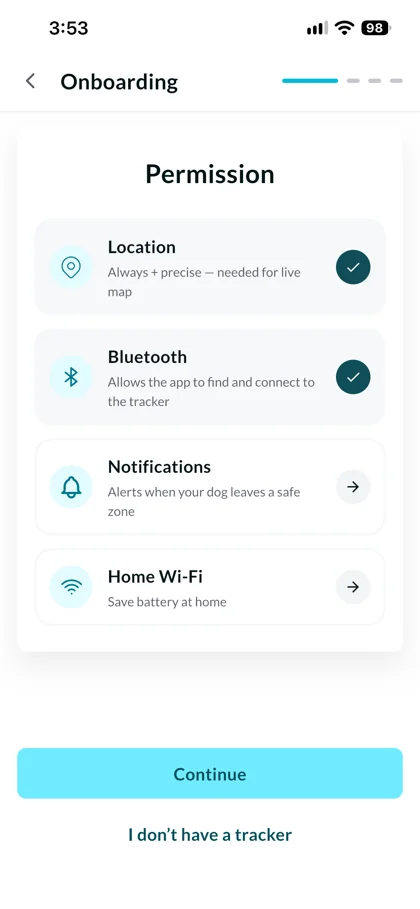
Return to the app. Until location is Always, with Precise Location on and your phone’s location switched on, the message “Allow Waggi to access your location Always and enable Precise Location” comes back. Tap Request Permission and follow the prompts. In setup, the ticks on the Permission screen update by themselves.
It says “Precise Location not enabled”?
Your phone is sharing an approximate location. Tap Open Settings and switch on Precise Location (iPhone) or Use precise location (Android), then come back.
-
Step 4: Check Bluetooth too
The app talks to the tracker over Bluetooth. Switch Bluetooth on, then check Waggi is allowed to use it. On iPhone, open Settings, find Waggi (under Apps on newer iPhones) and switch on Bluetooth. On Android, go to Settings › Apps › Waggi › Permissions › Nearby devices and allow it. On Android, the tracker connection also needs Waggi’s location allowed.
TipOn the Permission screen in setup, Continue stays greyed out until Location and Bluetooth both have a tick. Notifications and Home Wi-Fi are optional.
-
Step 5: Check it worked
Open the Walk tab. The map shows where you are, instead of a message saying something is “not enabled”. From now on, Walk Now and Live go straight ahead without asking for your location.
Photo needed: The Walk tab with the map showing the phone’s position and the Walk Now buttonStill asking after all that?
Close Waggi completely and open it again. If it keeps asking, contact support at support@waggi.com and tell us your phone model.
Frequently asked questions
Continue is greyed out on the Permission screen.
Location and Bluetooth both need a tick. For Location, allow Waggi Always, with Precise Location on, and make sure your phone’s location is switched on. For Bluetooth, allow it and switch it on. The ticks update when you come back from Settings. “I don’t have a tracker” waits for both too. Notifications and Home Wi-Fi are optional.
How do I set Waggi’s location to Always?
In your phone’s settings for Waggi, set Location to Always (Allow all the time on Android) and switch on Precise Location. Walks, Live mode and setup all need it. The guide “Fix location permission problems”, above, shows the steps for iPhone and Android.
The app keeps asking me to allow location Always with Precise Location.
The message “Allow Waggi to access your location Always and enable Precise Location” comes back each time you return to the app until all three are done: Always, Precise Location, and your phone’s location switched on. Tap Request Permission and follow the prompts. If Always isn’t offered, follow “Fix location permission problems”, above.
It says Precise Location not enabled, or GPS not enabled.
Precise Location not enabled means Waggi only has your approximate location: in your phone’s settings for Waggi, switch on Precise Location (iPhone) or Use precise location (Android), then come back. GPS not enabled means your phone’s location is switched off: tap Turn On, or turn on Location Services (iPhone) or Location (Android), then return to the app.
It says “Permission Required” and “Please allow the permission from settings.”
You said no to a permission Waggi needs, such as camera, photos, notifications or Bluetooth, and your phone won’t ask again. Tap Open Settings, allow it for Waggi, then come back.
Why is there a “Waggi app service running” notification on my Android phone?
Android shows it while Waggi keeps its Bluetooth link to your tracker in the background, so steps on walks and charging status keep coming. During a walk or Live mode you may also see “Location background service is running”. It’s safe to leave on.
Why does my iPhone show the location arrow during a walk?
Waggi uses your phone’s GPS to draw the walk route, and to give directions in Live mode. The iPhone shows that it’s in use until you stop the walk or Live mode.
Does Waggi drain my phone’s battery?
Walks and Live mode use your phone’s GPS the whole time they run, so stop them when you’re done (Stop Walk, or End Live Location). The rest of the time, Waggi keeps a Bluetooth link to the tracker, which usually uses much less. Your dog’s location comes from the tracker, not your phone.
Should I turn off battery optimisation for Waggi on Android?
If alerts arrive late or the tracker keeps dropping its Bluetooth link, yes. In Waggi’s app settings, set Battery to Unrestricted (the name varies by phone).