Welcome back. You were on step .
-
Step 1: Check where it was last
Open the Location tab. The pin shows the last place the tracker sent, and the time next to Location says how long ago. Note the battery icon at the top right too.
TipIs your dog missing too? The pin shows where the tracker is, not your dog. Follow “What to do the moment your dog goes missing” first.
Photo needed: The Location tab with the pin, the time next to Location and the battery icon at the top rightThe time says hours ago?
The tracker may have run out of battery, or be somewhere without mobile coverage. That last place is still your best lead, so start there.
-
Step 2: Go to that place
Head to the spot on the map. Don’t rely on Live here. If you tap it, it may say Live Location Unavailable, because a tracker lying still doesn’t start Live. Inside a virtual fence, Live doesn’t start either.
TipThe tracker doesn’t make a sound, so search the ground, long grass and under bushes around the spot.
-
Step 3: Use Connect to check you’re close
When you’re near the spot, go to Settings › Tracker Settings and tap Connect. The app tries for up to 30 seconds. If it says Connected, the tracker is within Bluetooth range of your phone, so it’s close by.
Photo needed: Tracker Settings with the Connection card showing Connected and the Disconnect buttonIt says Connection Failed or Search Failed?
The tracker isn’t in range yet, or Bluetooth is off on your phone. Check Bluetooth is on, move to another part of the area and tap Retry.
-
Step 4: Check the strap, then put it back on
Once you’ve found it, check the strap isn’t torn or stretched and the stud is still firm. Then fit it back on the collar, snug enough that it doesn’t slide or twist.
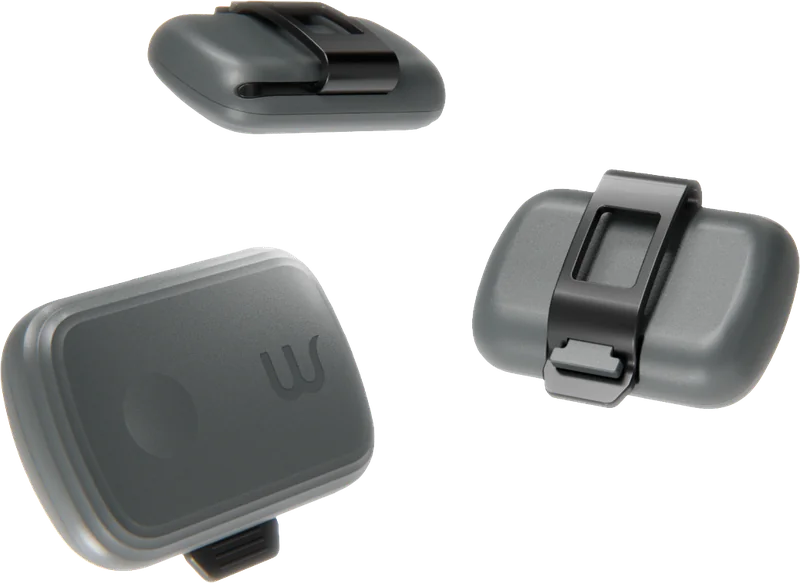
The strap is damaged?
Don’t put it back on your dog with a damaged strap. Contact support at support@waggi.com and we’ll help.
-
Step 5: Still can’t find it?
If you can’t find it after searching the area, contact support. If it’s gone for good, we can remove it from your account so you can pair a new one.
Frequently asked questions
My dog has escaped and I can’t find them. What should I do first?
Open the Location tab: your dog’s pin shows the last place the tracker sent, and the time next to Location says how long ago. Then tap Live to follow them minute by minute and get a route to them. The guide “What to do the moment your dog goes missing” takes you through each step.
Should I turn Live mode off once I’ve found my dog?
Yes. Live mode uses more battery than anything else, because the tracker sends its location much more often. Once your dog is safe, tap the X on the Live screen and then Stop, or tap End Live Location on the Home screen, then confirm.
Live mode says there’s no route to my dog.
You’ll see “No Walking route found to your pet. Try a different travel mode.” Under “Get directions to your pet by:”, tap Driving, Cycling or Train instead. The pin still shows where your dog is.
My dog is missing, but the app says they’re in Home.
The last location the tracker sent was inside your fence, and Live is off while your dog is inside a fence (“Live location is disabled while pet is in Virtual Fence”). Look at the time next to Location and start searching near home. When the tracker sends a precise location from outside the fence, you get an escape alert (if Escape Alerts is on) and can tap Live.
My dog’s tracker came off. How do I find it?
Open the Location tab: the pin is the last place the tracker sent, with the time next to Location. A tracker lying still won’t start Live (“Live Location Unavailable”), so go to that spot. Once you’re close, go to Settings › Tracker Settings and tap Connect: if it says Connected, the tracker is close by. The guide “Find a tracker that’s come off the collar”, above, shows each step.