Welcome back. You were on step .
-
Step 1: Check when it last updated
Open the Location tab. The time next to Location, such as “12 minutes ago”, says when the tracker last sent your dog’s location. Your dog’s card on the Home screen shows the same time.
TipA time that grows while your dog is asleep is normal. Updates are further apart while your dog is resting, and come sooner once they’re on the move or leave a virtual fence.
Photo needed: The Location tab with the time next to Location reading “2 hours ago”, and the battery icon at the top right -
Step 2: Check the tracker has charge
Look at the battery icon at the top right of the Location tab. If it’s low or shows a question mark, put the tracker on its charging pad. A light comes on to show it’s charging.
TipWhen its battery runs out, the tracker turns itself off. Charging turns it back on.
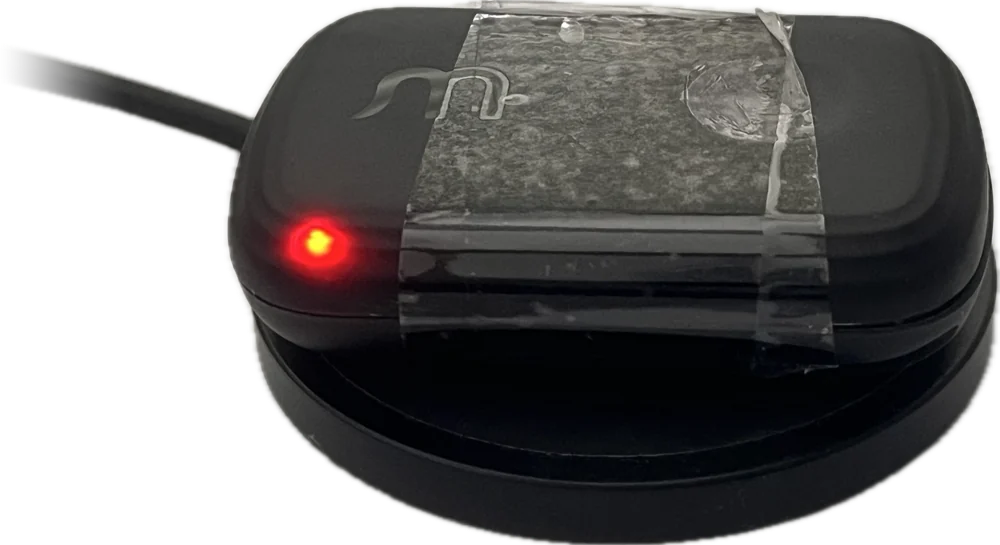
No light on the pad?
Follow “The tracker won’t turn on or charge”, under Battery, lights and resets.
-
Step 3: Check it can get a signal
The tracker sends your dog’s location over its own mobile connection. Deep indoors, underground or where there’s no mobile coverage, it can’t send until it’s back in range. Until then, the map keeps the last location and its time.
TipIndoors, GPS is weak, so the tracker relies on nearby Wi-Fi networks to work out where it is. Where there are few, the circle around your dog’s pin can be larger. GPS works best under open sky.
-
Step 4: Send a fresh location
If the tracker is with you, press its button once. It works out where it is and sends a fresh location, which can take a few minutes. The map updates by itself. If it doesn’t, close Waggi and open it again.
TipNo light comes on when you press the button. Just press and let go. Holding it for 3 seconds turns the tracker off.
Photo needed: A finger pressing the button on the tracker, on the collar -
Step 5: Tap Live if you need them now
If your dog is out and you need to see where they are right now, tap Live on the Location tab. Once Live tracking is active, the location updates about once a minute. Live doesn’t start while your dog is inside a virtual fence.
TipIs your dog missing? Follow “What to do the moment your dog goes missing”. It also covers what to do if Live can’t find them.
Photo needed: The Live screen once it says “Live tracking is now active”, with the dog’s pin and the time -
Step 6: Contact support
Still not updating after you’ve charged the tracker and pressed its button somewhere with mobile coverage? Check you have the latest version of Waggi from the App Store or Google Play, then contact support and we’ll help.
Frequently asked questions
My dog’s location isn’t updating. What should I check?
The location card shows the last location the tracker sent, and the time next to Location says how long ago. A growing time is normal while your dog is resting, because updates are further apart. If it says hours ago, the tracker may be out of battery or somewhere without mobile coverage, so put it on its charging pad. The guide “Location isn’t updating”, above, takes you through each check. If your dog is outside your virtual fences and you need to see them now, tap Live.
The Home screen says my dog’s tracker is disconnected. What should I do?
It shows before the tracker has sent its first location, while your phone can’t reach it over Bluetooth either. Check the tracker is charged and close to your phone, and that Bluetooth and your phone’s location are both on. Once the first location arrives, the card shows where your dog is. Tap Troubleshoot on the card for more help.
Live mode won’t start. Why?
Four things stop it. Your dog is inside a virtual fence, and the app says “Live location is disabled while pet is in Virtual Fence”: see “My dog is missing, but the app says they’re in Home.”, under If your dog or tracker is missing. The tracker hasn’t noticed any movement yet, and the app says Live Location Unavailable: see “Live mode says Live Location Unavailable, but my dog is missing. What now?”, in the same section. A walk is running: stop it first, as in the answer about “The app can not start a walk mode while a live mode is active.”, under Walks. Or Waggi can’t use your phone’s location, which Live needs set to Always with Precise Location on: see the answer about “Live location is unavailable. Please enable location permissions to continue.”, below.
Why does location jump around indoors?
Indoors, GPS is weak, so the tracker relies on nearby Wi-Fi networks. Where there are few, the circle around your dog’s pin is larger and the pin can move. It settles once your dog is outside or back near Wi-Fi.
Why is Live mode slow to start?
Live mode wakes the tracker, which can take up to a minute. With weak signal it can take longer: the app says “This is taking longer than usual…” and shows the last known location until an update arrives. If it hasn’t answered within three minutes, the app says “Tracker is currently unreachable”: check it’s charged and try again.
My dog’s location shows where my phone is. Why?
While Waggi is open and connected to the tracker over Bluetooth, your phone can stand in for the tracker when the tracker hasn’t sent a location for a while, for example indoors. The two are close together, so it’s a good guide. It’s never used during a walk. Once the tracker sends its own location again, the map uses that. See Connection, under Knowing your tracker.
The Location tab says Location not enabled.
The tab shows this when Waggi can’t use your phone’s location and has no location for your dog to show yet. Tap Enable or Open Settings, allow location for Waggi with Precise Location on, then come back to the app.
Live mode says “Could not fetch live location of pet.”
The tracker answered but couldn’t work out a location in time, usually indoors or under heavy cover. Try again in a few minutes. The map keeps showing the last location while you wait.
It says “Live mode is disabled on the tracker. Please try again later.”
The tracker turned down the Live request. Wait a minute and tap Live again. If your dog is inside a virtual fence, Live won’t start.
The map hasn’t changed, but the tracker is charged and has signal.
Your phone needs the internet to get new locations, so check it’s on Wi-Fi or mobile data. Then close Waggi completely and open it again.