Welcome back. You were on step .
-
Step 1: Sign in on your new phone with the same account
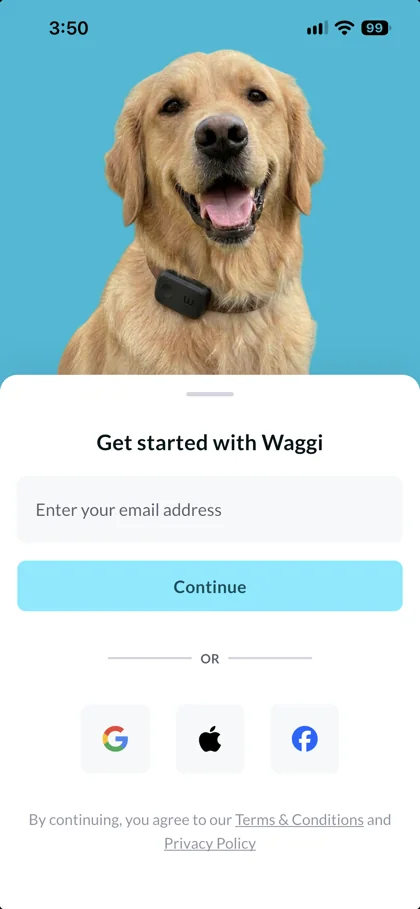
Install the Waggi app on your new phone. On Get started with Waggi, sign in with the same email address as before. Type it and enter the four-digit code we email you, or tap Google, Apple or Facebook. Any of them opens the same account if the email is the same.
TipThere’s nothing to pair and no profile to set up again. Your dog, tracker, walks, fences and alert settings are saved to your account, not your phone. If you used Apple and chose to hide your email, tap Apple again, because a different email opens a new, empty account. The same steps work if you reinstall the app.
-
Step 2: Allow location, Bluetooth and notifications
If the Permission screen appears, tap Location and choose Always, with precise location on, then tap Bluetooth and allow it. Tap Notifications to check your alerts are on, and allow notifications when your phone asks. Then tap Continue to open Home.
TipHome Wi-Fi may have no tick here on a new phone. It comes back once you’re signed in and the app has connected, so there’s no need to add it again unless it’s changed.
Photo needed: The Permission screen on a new phone for an owner who’s already set up (no I don’t have a tracker button): Location and Bluetooth ticked, Notifications and Home Wi-Fi without a tick, Continue enabledThe app asks you to pair a tracker or set up your dog?
You may be signed in to a different account. Tap the back arrow, then Logout, and sign in with the email you used before. If it’s the right account, setup didn’t finish on your old phone, so carry on from where you left off.
-
Step 3: Let the app reconnect to your tracker
Keep the tracker charged and close to your phone. The app finds it over Bluetooth by itself. To check, go to Settings › Tracker Settings. The card should say Connected. If it says Disconnected, tap Connect.
TipYour dog’s location keeps updating in the meantime. The tracker sends it over its own mobile connection.
CautionDon’t use Factory Reset to move the tracker to your new phone. It isn’t needed, and afterwards only support can pair the tracker again.
Photo needed: Settings › Tracker Settings on the new phone: the Connection card with “[Name]’s Tracker”, its ID and the green Connected labelIt says Connection Failed?
If the message says the tracker may be connected to another phone, sign out on your old phone (step 4) or turn off its Bluetooth, then tap Retry. If the tracker didn’t respond in time, check it’s charged and close by, then tap Retry. Still not connecting? Follow “The app can’t find my tracker”.
-
Step 4: Sign out on your old phone
If you still have it, open Waggi on your old phone, go to Settings, tap Logout and confirm. That phone then stops getting your dog’s alerts and disconnects from the tracker, so your new phone can connect. Every phone that’s still signed in keeps getting alerts.
Lost your old phone, or can’t sign out on it?
If you deleted Waggi or reset the phone, it stops getting alerts on its own. If it was lost or stolen while signed in, contact support and we’ll help.
Frequently asked questions
Why does the tracker keep disconnecting?
Bluetooth only works over short distances, so the tracker disconnects from your phone when you and your dog are apart. That’s normal: it keeps sending its location over its own mobile connection, and the app reconnects by itself when you’re close again. If it never connects, even up close, check Bluetooth is on and Waggi is allowed to use it.
Tracker Settings says Disconnected, but the tracker is right next to me. What should I do?
Disconnected is about Bluetooth only: the tracker still sends its location over its own mobile connection. Check Bluetooth is on and the tracker is charged. The tracker connects to one phone at a time, and Waggi keeps that link going in the background, so if it’s on another phone nearby, turn off Bluetooth on that phone, or close Waggi there completely. Then tap Connect and wait for the countdown. If it says Connection Failed, read the message under it, or follow “The app can’t find my tracker”, above.
The app says to hold the button until the light blinks blue, but it never does. Why?
There’s no blue pairing light. The tracker can be found whenever it’s switched on, even on its charging pad, so there’s nothing to press. Holding the button for 3 seconds turns it off. If the light went solid red, put the tracker on its charging pad to turn it back on, then tap Retry. The guide “The app can’t find my tracker” has the other checks.
It says “The connection was interrupted. Turn Bluetooth off and on, then try again.”
Turn Bluetooth off and on in your phone’s settings, keep the tracker next to your phone and tap Retry. If it happens again, restart the tracker (see “Reset the tracker”, under Battery, lights and resets).
It says “Multiple Waggi devices found.”
The app found more than one Waggi tracker nearby. Move the others away or switch them off, keep yours next to your phone, and tap Retry.
It says my tracker is registered with another account. What should I do?
The tracker is still linked to a different Waggi account. If you set it up before with another email, or with Google, Apple or Facebook, sign in that way instead. Otherwise, for example if the tracker was someone else’s, contact support: only support can move it to your account.
It says my tracker connected but the setup could not finish. What should I do?
Check your phone is online, because pairing sets the tracker up on your account. Restart the tracker, as shown in “Reset the tracker”, then tap Retry. If you see the same message again, or the tracker was someone else’s or went through Factory Reset, contact support: it’s still linked to another account, and only support can move it to yours.
Setup says “A tracker is already paired to this account.”
Your account already has a tracker, so you can’t choose “I don’t have a tracker”. Tap Continue instead.
Setup says “Pair a tracker or skip it, and add your dog before finishing.”
Go back, then pair your tracker (or tap “I don’t have a tracker”) and finish your dog’s details.
I closed the app during setup. Do I have to start again?
No. When you open Waggi again, it takes you back to the step you’d reached.
I tapped Disconnect in Tracker Settings. Is my tracker removed?
No. Disconnect only ends the Bluetooth link to this phone. The tracker stays on your account and keeps sending your dog’s location. It stays disconnected until you tap Connect or open the app again, so tap Connect when you want steps on walks, charging status or updates again.
Will I lose my walks if I change phones?
No. Saved walks are kept on your Waggi account, not your phone, so they come back when you sign in on your new phone with the same email. Your dog’s profile, tracker and fences come back too. The guide “Pair again after changing phones”, above, shows each step.
The app shows more than one tracker. Which one is mine?
Other Waggi trackers nearby show up too. Pick the one whose four characters after WAGGI Tracker match your tracker’s ID. Holding yours right next to your phone helps too: it shows Nearby · strong signal. If you’re still not sure, take the others out of range or switch them off, tap Retry, then tap yours and Continue.
Home Wi-Fi won’t save, or the tracker won’t join my Wi-Fi.
Both are answered on Home Wi-Fi, under Knowing your tracker: see “My home Wi-Fi won’t save. What’s wrong?” and “Is the tracker connected to my Wi-Fi?”.